Switching Google accounts

MineMineMine keeps your progress safe in the cloud using Google Play Games. Play Games remembers one Google account per game on your device, and Google no longer lets games show their own account picker. So switching accounts takes a quick trip through the Play Games settings. Here's how.

1. Sign out in the game

Open the More tab, go to Profile, and tap Sign out / switch account.

Don't worry about your progress. It's already saved to the cloud under the account you were playing on, and it comes back the moment you sign in with that account again.
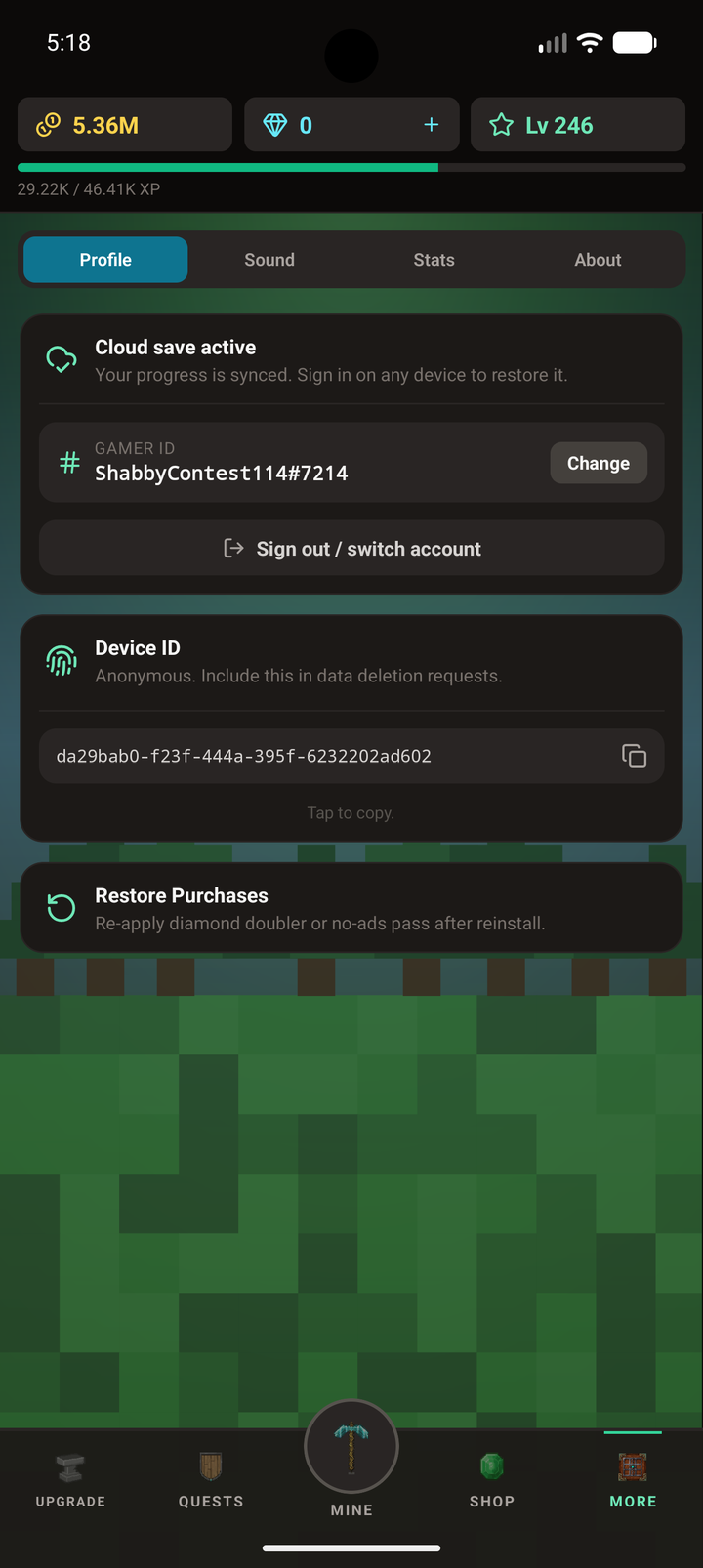
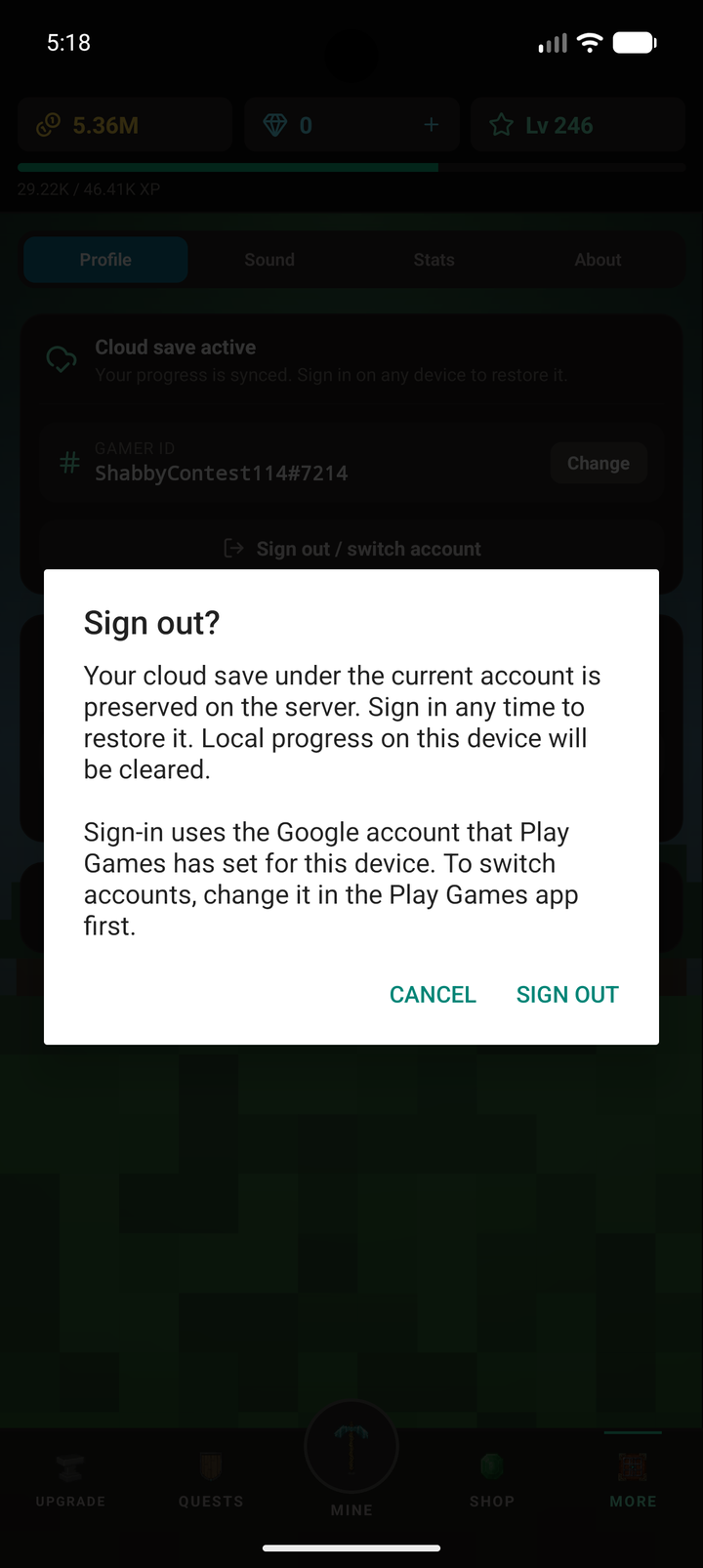
The MineMineMine Profile tab with the Sign out / switch account button The sign out confirmation dialog in MineMineMine

2. Pick the account in Play Games

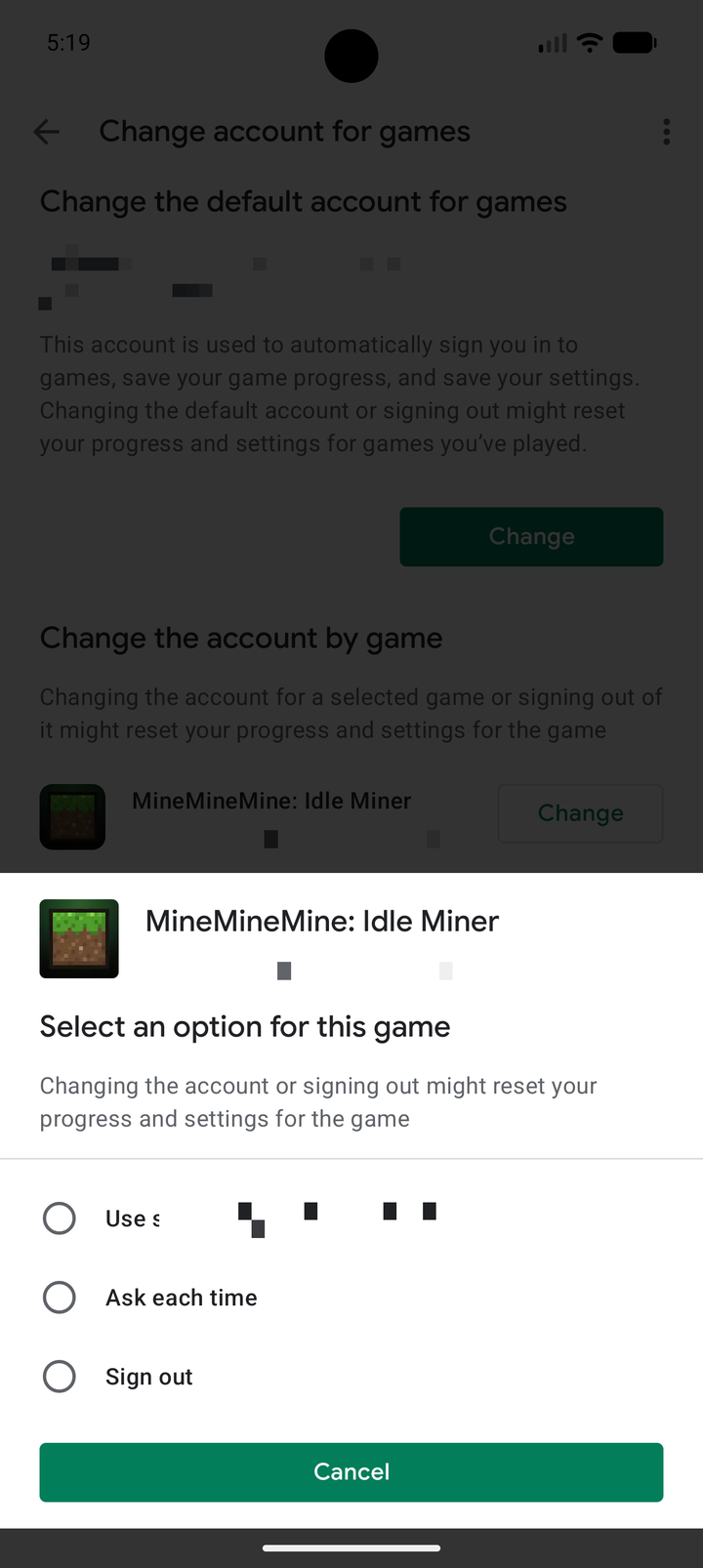
Open the Google Play Games app, tap your profile picture, then Settings, then Change account for games.

Under "Change the account by game", find MineMineMine and tap Change. Pick the account you want to play on. You can also choose Ask each time if you share the device.

The Play Games 'Change account for games' screen with account options for MineMineMine

3. Sign back in

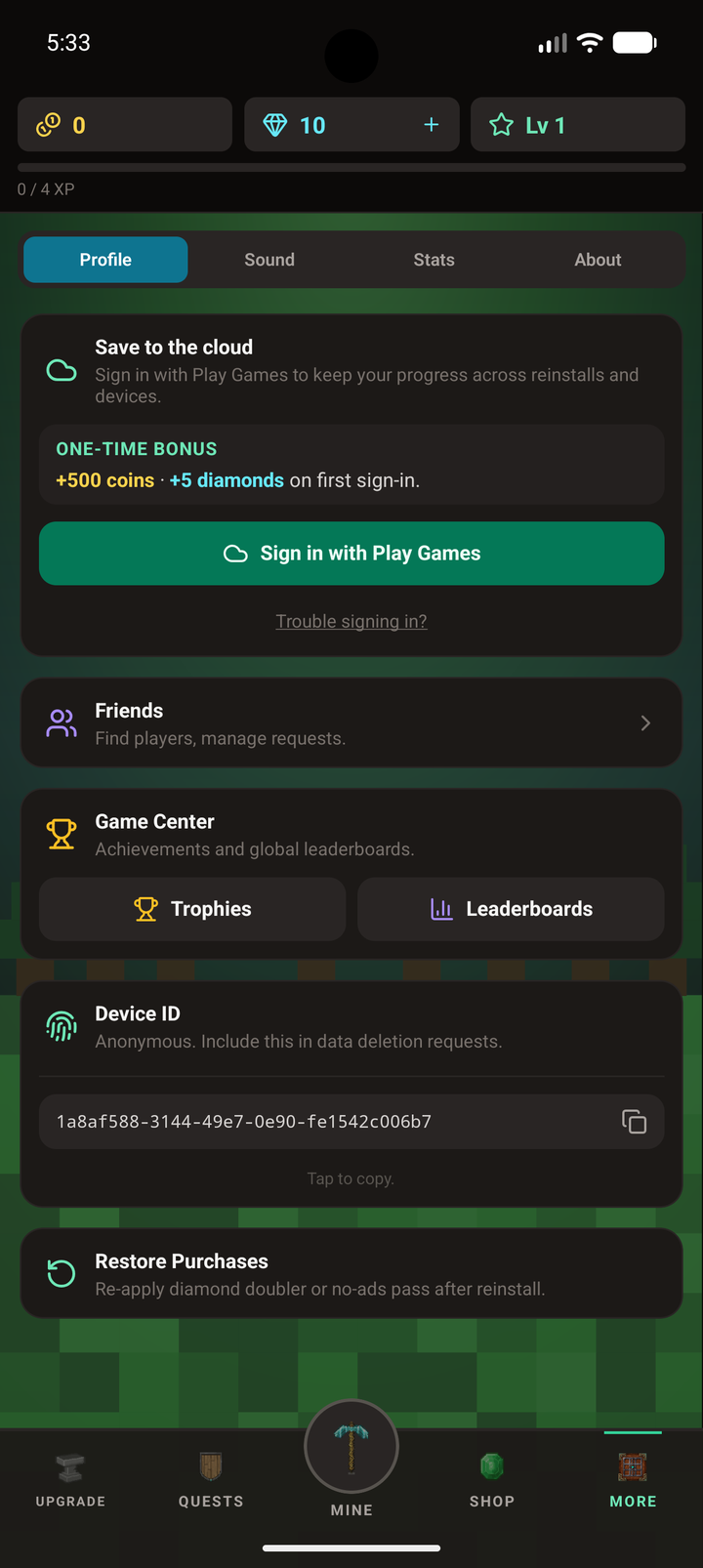
Back in MineMineMine, go to More > Profile and tap Sign in with Play Games. The game links up with the account you just picked and pulls in that account's cloud save.

The MineMineMine Profile tab when signed out, with the Sign in with Play Games button

Good to know: each Google account has its own separate cloud save. Switching never deletes anything. Switch back any time and your progress will be right where you left it.

Trouble?

If you can't find the setting, or the wrong account keeps coming back, there's a reliable reset:

  1. Open Android Settings > Apps > Google Play Games.
  2. Tap Storage & cache, then Clear data. This only resets the Play Games app's own settings. It does not touch your game saves.
  3. Go back to MineMineMine and tap Sign in. Play Games will run its quick setup and ask which account to use.

Still stuck? Email seagullgamesstudios@shelfkit.net.